|
You last visited: Today at 10:06
Advertisement

[PK2 TOOL] BMS Model converter
Discussion on [PK2 TOOL] BMS Model converter within the SRO Coding Corner forum part of the Silkroad Online category.
 01/03/2012, 21:17
|
#1
|

elite*gold: 0 
Join Date: Feb 2008
Posts: 226
Received Thanks: 531
|
[PK2 TOOL] BMS Model converter
I've had this for a while, and wasn't doing anything useful with it, so I decided to release it to the public.
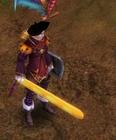
This tool allows you to convert model files from silkroad's data.pk2 to files that can be read by blender, and can also convert these files back. That means this tool allows you to put custom weapons in the game.
(For example, I pulled this prank with it: )
You can download it here:
 With US support
Blender 2.6+ needs other import/export scripts, replace the old ones with these:
I want to thank some people for helping me one way or another:
Qynchou(/lopasas), drakek(/ni), npcdoom, Klevre, Synx and Drew Benton.
Now it does go with a manual, so please READ THIS before you use it, and read it again before asking any questions.
Manual:
Short interface overview:
 1 -
1 - This area is used to convert files taken from the data.pk2, and convert them into object files, which can be read by blender. Just select a file, press convert and it will place the converted file in the same folder. You CAN select multiple files at once.
2 - This box is still only for viewing purposes, it splits complicated meshes like mobs/characters/armors up in several groups. THIS IS STILL WIP
3 - This area is used to convert files from the object format into silkroad .bms files. You start off by selecting a file, then you input the other fields and select the type. Once all the field are correct you can press convert and it should work.
4 - In this field you have to fill in the group the model belongs to, usually this is just the name of the file, how you can find the model group can be found in the extended manual.
5 - Here you put in the name of the material associated with the mesh, how you can find this is also in the extended manual.
6 - You can select the type of model here, which is important for the placement ingame, it's pretty self-explanatory. If you modeled a sword select 'weapon', if you modeled a hat select 'hat'.
7 - This little log area will tell you how things are going.
Import and Export settings to use with Blender:
IMPORT:
EXPORT:
Extended manual on how to import a mesh into silkroad:
Step 1:
Know what you want to replace and get a model. In before making this tutorial I ate some French cheese, so I decided to make a baguette, or stick bread.
Step 2:
If you have your model in blender, you have to put a texture on. The most basic way is to first split your screen, you can do this by right clicking the black border in Blender, like so:
After this you set your second screen to UV/Image editor, like so:
Now the most basic way to set a UV map is to tap A one or two times, untill all the vertices in your model are orange (Make sure the mode in the model window is in EDIT MODE). After that you can press U, and select 'project from view'. This will put an image your model onto the UV editor. You can then save the layout to use in photoshop:
(This is the most basic way to UV map your model, you can do it way more accurate, but just look some tutorials up on that.)
After you made a texture for your model you can test it in Blender, by going to image>open Image in the UV editor. Also make sure you put the drawing mode in the model window to 'Textured'.
Step 3:
You now have to position your model. Import an original silkroad model into blender and move your weapon untill the part where you hold your weapon is the same as the part where you hold the original weapon (I put my window on wireframe mode now, to see it better. (DO THIS IN EDIT MODE, NOT IN OBJECT MODE, the pink dots of the new and the original mesh have to align)
Step 4:
Once your model is aligned, you can export it, make sure to select your model in object mode, and use the export settings as given above.
Step 5:
Before we can convert the model, we have to find the model group and the material name of the model. Take the file of the mesh you are going to replace, and open it in a Hex editor such as XVI32. You are looking for two words at the beginning of the file like this:
Use these in the converter, and convert your model, if everything went right it should say so in the log.
Step 6:
You can import your mesh into the data.pk2 now. Make sure you overwrite the right file. Also dont forget to save your texture as a .dds, and convert it to .ddj. Then replace the texture with the same name as the material name of your model with your own texture.
If you did it right it could look a bit like this:
Multibone Update:
Info:
This new version uses a couple of blender plugins to convert to and from a modified wavefront file format (blabla). What you can do with it is edit models that move ingame. Editing both parts of a multi-file mesh can be done, but is very buggy and not reccommended. I'm talking about stuff like mobs/armors/avatars etc. An important thing to remember is that the models are still influenced by the same animation-skeleton. This means you can't just change the sizes of models.
An example of what you can do with this version:
Extra Manual:
Installing:
Installing and using this converter works the same as version 1, the instructions and manual for the first version are still valid, there have just been some additions. You can still put the converter anywhere you like. You will notice however, there are 2 .py files in the zip. Put those in .../Program Files/Blender Foundation/Blender/[blender version]/scripts/addons. To activate them, open up blender, go to file > user preferences. Then go to the addon tab and search for silkroad. Check both boxes that should pop up.
You are now ready to convert multi-bone models!
How to use:
Using this converter isn't that different from the last one, but there are some differences:
1) If you want to edit a multibone model, check the .srobj checkbox in the convert from bms panel.
2) In blender import the file by going to file > import > Silkroad Object. There's no options to tick so that's easy!
3) Once the model is in blender, click on the 'vertices' triangle on the right (highlighted in screenshot below), and scroll down to vertex groups. When you are in edit mode, hit A to deselect everything, click a vertex group and press select, you should now see the vertices that belong to that group.
You can assign vertices to a group by having the group and the vertices selected and pressing assign. To remove them from that group again press remove.
You can do whatever you want with the vertices, you can even add new ones, as long as you keep a couple of things in mind:
1- Every vertex has to have at least one group
2- No vertex can have more than 2 groups
3- You can not add or remove any groups
Interface screenshot:
4) Once you are done editing, you can export the model by going in to object mode, rightclicking it and going to file > export > silkroad object. No options again, as long as you have your mesh selected (very important).
5) Converting back to bms works the same as before, check the model group and material name in the original file, and put the checkbox on multi-bone.
6) Import and you're done, enjoy!
If you have any questions, feel free to ask, but if it's in the manual I might get mad!
PS: THIS RELEASE HAS BARELY BEEN DEBUGGED, SO ERRORS MIGHT (and probably will) OCCUR!
*RESERVED FOR FAQ*
EDIT: If you happen to make something with this, drop a screenshot, I'm curious what people are going to come up with!
|

|
|
|
01/03/2012, 21:25
|
#2
|

elite*gold: 0
Join Date: Mar 2009
Posts: 2,693
Received Thanks: 3,160
|
MY *** ****** EPIC !
|
|
|
|
|
01/03/2012, 21:33
|
#3
|

elite*gold: 41
Join Date: Nov 2007
Posts: 3,385
Received Thanks: 2,700
|
best release in years.. would you like joining the sro underground?
|
|
|
|
|
01/03/2012, 21:35
|
#4
|
elite*gold: 0
Join Date: Feb 2008
Posts: 226
Received Thanks: 531
|
Quote:
Originally Posted by Yo123

best release in years.. would you like joining the sro underground?
|
Nope, I do what I want when I want, and I'm not planning to change that soon, because I like it 
Also, I don't like silkroad enough anymore to invest a lot of time into it.
|
|
|
|
|
01/03/2012, 22:20
|
#5
|

elite*gold: 0
Join Date: Mar 2008
Posts: 114
Received Thanks: 65
|
Been waiting for a BMS exporter since Cruor showed his red tea pot. I shat brick
|
|
|
|
|
01/03/2012, 23:27
|
#6
|

elite*gold: 0
Join Date: Feb 2009
Posts: 1,064
Received Thanks: 539
|
I tried to download it, but it looks like mediafire doesn't like me(always says "Preparing download...")
Could someone upload it somewhere else, please?
edit: nvm got it working in IE
Very nice program ya made there
|
|
|
|
|
01/03/2012, 23:28
|
#7
|

Chat Killer In Duty
elite*gold: 5
Join Date: May 2008
Posts: 16,390
Received Thanks: 6,508
|
Quote:
Originally Posted by perrytje
Nope, I do what I want when I want, and I'm not planning to change that soon, because I like it
Also, I don't like silkroad enough anymore to invest a lot of time into it. |
normally, ppl would have come to "YESZZ i WNAST Undergrounds" but u are cool and rejected it
i must applaud that
btw, epic prank
|
|
|
|
|
01/04/2012, 03:10
|
#8
|
elite*gold: 100
Join Date: Sep 2009
Posts: 1,195
Received Thanks: 379
|
here it's download of Blender:
the official download page
|
|
|
|
|
01/04/2012, 17:01
|
#9
|
elite*gold: 0
Join Date: Sep 2009
Posts: 520
Received Thanks: 435
|
Is it possible to use it with Autodesk 3Ds Max ?
|
|
|
|
|
01/04/2012, 17:44
|
#10
|
elite*gold: 0
Join Date: Feb 2008
Posts: 226
Received Thanks: 531
|
Quote:
Originally Posted by CraYu
Is it possible to use it with Autodesk 3Ds Max ?
|
Should be possible, haven't tested it though.
|
|
|
|
|
01/07/2012, 00:40
|
#11
|
elite*gold: 0
Join Date: Jan 2010
Posts: 1,484
Received Thanks: 809
|
Awesome release great job
@Yo123 I assume your response was in the moment of happiness when you saw this thread cuz although this is a sweet release I wouldn't call it the best release in years cause those would be from drew.
But great work perrytje.
|
|
|
|
|
02/14/2012, 23:37
|
#12
|

elite*gold: 0
Join Date: Sep 2008
Posts: 34
Received Thanks: 2
|
Hi i want know your comment to my tsword d14 i customed it see :
|
|
|
|
|
02/15/2012, 08:13
|
#13
|
elite*gold: 0
Join Date: Feb 2008
Posts: 226
Received Thanks: 531
|
Quote:
Originally Posted by tidjana972
Hi i want know your comment to my tsword d14 i customed it see : |
Looks great! That's the good part about this method, even if you dont put a new texture on, it can still look awesome by deforming the old texture into the new shape.
|
|
|
|
|
02/15/2012, 15:38
|
#14
|
elite*gold: 0
Join Date: Sep 2008
Posts: 34
Received Thanks: 2
|
ty , i am doing other weapon like glaive !! i will show after lol
|
|
|
|
|
02/15/2012, 18:06
|
#15
|

elite*gold: 0
Join Date: Mar 2009
Posts: 2,748
Received Thanks: 2,010
|
still waiting for my ponies.
|
|
|
|
 |
|
 Similar Threads
|
[Tool] EDF converter
12/11/2012 - RFO Hacks, Bots, Cheats, Exploits & Guides - 26 Replies
Here is the Item edf Converter. I looked on the site to find it and still couldn't find it.
After about 3 hours of looking (google didnt even show up with it lol) I found it and thought i would post it here for you guys to use.
BTW im not A leecher If i PM you I Just lost the PW to the email on my other account and the account password look it up name is Dro in member list.
*********
Edit
*********
|
[TooL] AgBot Script Converter
09/08/2012 - SRO Hacks, Bots, Cheats & Exploits - 34 Replies
Hey E*PvP members.
Here is a litle tool me and hussert ware working on.
AgBot Script Converter
Current Version 1.00
Screenshot:
http://img126.imageshack.us/img126/7180/logonp1.pn g
Functions:
|
SIlkroad Model Converter + View Sample [C#]
11/26/2010 - SRO Coding Corner - 13 Replies
I am finished with my C# BMS Converter:
class BMSConverter
{
int charCount;
int vertCount;
int boneCount;
int faceCount;
string mtlLib;
string meshGroup;
|
[Tool] Model Changer
08/06/2009 - SRO Hacks, Bots, Cheats & Exploits - 3 Replies
....
|
[TOOL] dxtbmpx -dds converter
03/26/2009 - CO2 Private Server - 0 Replies
dxtbmp
I found a tool for converting dds files in normal grafic files and back.
But i don´t know if this here is the right forum part
How to use it?
I.install the programm
II. open the programm
Converting dds to bmp
III. press "File" and then "open" and chose the dds file that you want to convert
|
All times are GMT +1. The time now is 10:06.
|
|






![[PK2 TOOL] BMS Model converter](https://www.elitepvpers.com/forum/iconimages/sro-coding-corner/pk2-tool-bms-model-converter_ltr.gif)